The three ways in
Swipe
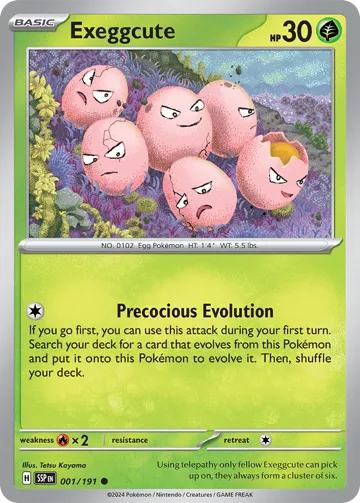
The lowest-friction way in. Swipe shows you one card at a time and asks a single question — yes, no, or love it? It's for discovery: you don't need a list yet, you're finding out what you're after.
Swipe mode
 Save →
Three decisions
Drag the card, swipe on touch, use the arrow keys, or tap the buttons under the card — whatever's closest.
- ← Pass
Not for you. The card's gone; the next one's up.
- → Save
Keep it. It lands on your saved pile for this session.
- ↑ Love
A favorite. It saves the card and nudges the queue toward more like it.
It learns as you go
Loved cards and your favorite sets and Pokemon quietly weight what comes next, so the queue drifts toward the cards you actually care about. If you're signed in, those favorites stick around between sessions. There's also an exclude cards you already own toggle, so Swipe stops showing you what's already in your collection.
Saved cards shape the queue
Every save or love adds to a running count next to the reset control. It doesn't put a card on a wishlist by itself — for that, tap Want on any card you're chasing, the same one-tap action Search and Browse use. Reset clears the count and starts the taste profile over.
Try it: open the live demo — it opens on Swipe. A few minutes of swiping is the fastest way to feel how it works.